A Quick Guide to Project Planning
Get started quickly with your project planning and learn all the important basics for your project success.
To take full advantage of Octaved Flow, there are various features available that greatly simplify the planning of your projects. In this tutorial, as a newcomer to the software, you can learn about various key elements of project planning.
Planning in the Gantt chart
You can easily adjust your planning directly in the Gantt chart using various drag & drop functions.
-
The bars can be moved completely with drag & drop.
-
You can drag the bars to the right and left to lengthen or shorten them.
-
With the dot on the left side of the bar, work packages can be made dependent on predecessors.
-
Drag & drop creates an arrow that can be placed on any work package to create a dependency.
-
Unplanned work packages can also be planned by clicking and dragging.
-
Tip: In the Gantt chart, you can see the shadow of the work package and easily create it.
-
To move an entire project or subproject, you can move the bracket using drag & drop.
Planning with the detail view
You can also perform all planning aspects manually in the detail view of projects, subprojects, and work packages.
Time planning
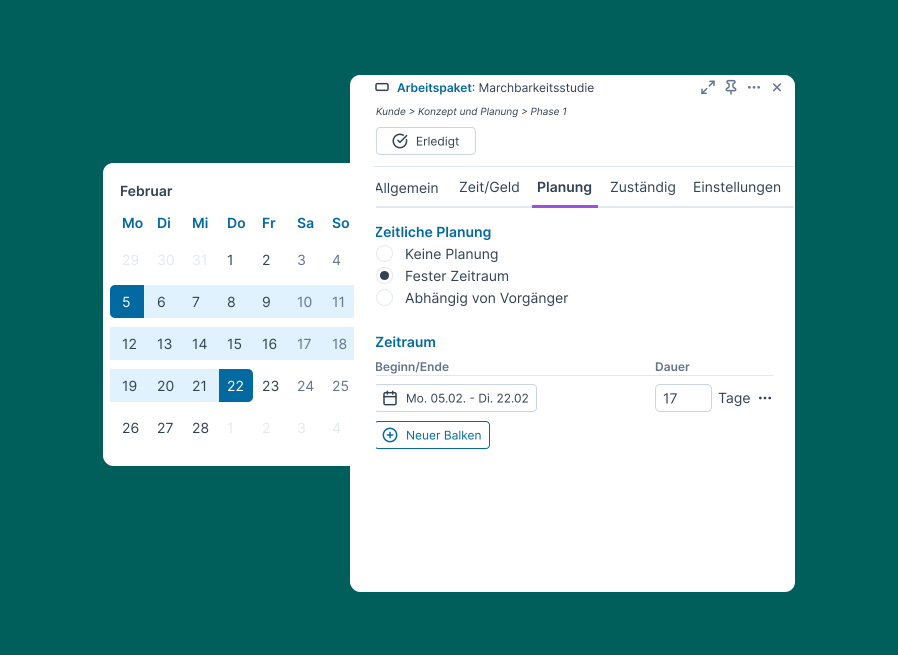
A calendar view can be used to plan time periods. After the first mouse click, the corners are rounded to the left to highlight the start date. If an end date is then set, the corners on the opposite side are rounded to create a bar. If no end date has been selected yet, the right corners remain unchanged.
Setting predecessors
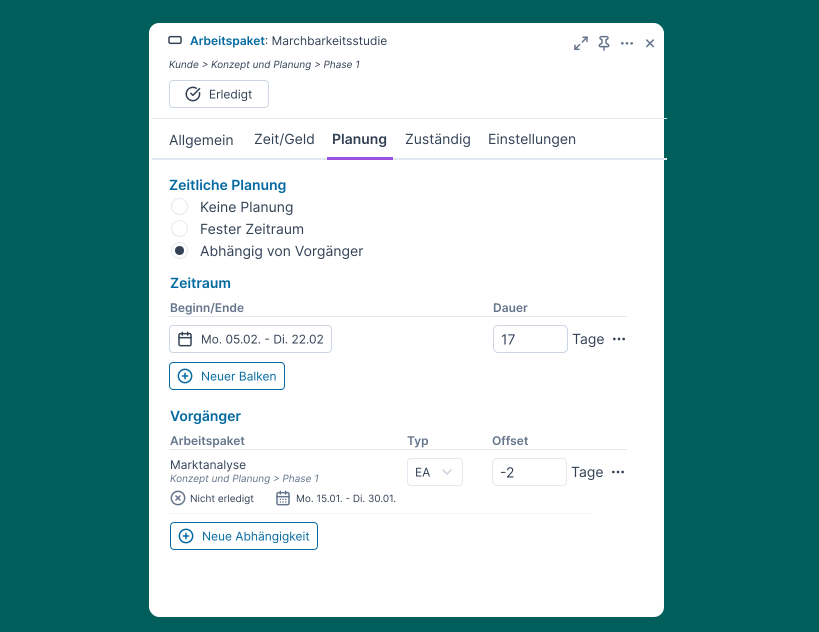
Dependencies can also be set in the detail view.
Once the first dependency has been created, Predecessors appears under Planning, where dependencies can be edited.
Due dates
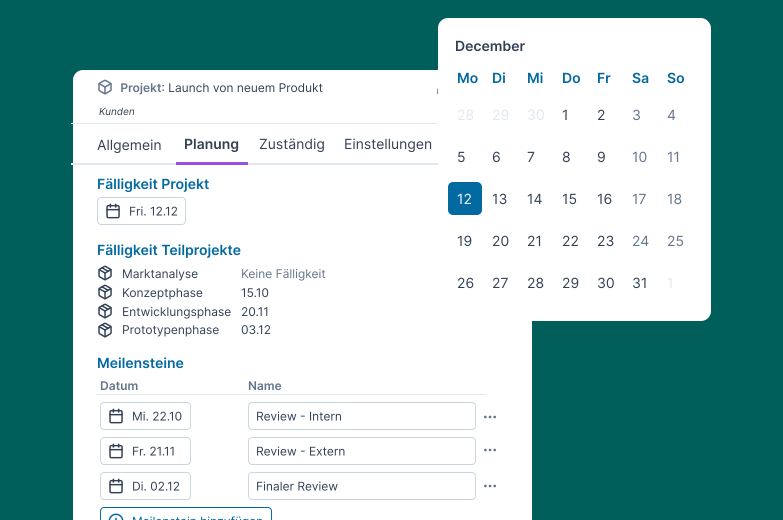
Another important function of project planning is the ability to set due dates and milestones for projects.
Due dates
Due dates can be set in the detailed view of projects, preventing the end date from being overlooked.
Tip: If due dates have been set in the detailed view, you can also move them in the Gantt chart using drag & drop.
Milestones
Milestones allow you to record important dates in Octaved Flow, helping you keep track of even complex projects.
Unlike due dates, you can set multiple milestones to see at a glance in the Gantt chart whether important deadlines are approaching.
Duplicate projects
If you are in the trial phase of Octave Flow, it is a good idea to duplicate the existing test project at this point to familiarize yourself with multi-project planning.
Now you can plan with two projects at the same time.