Create your first project
Learn how to create your first project in Octaved Flow and get important tips to ensure your project's success.
How do you create a project in Octaved Flow?
If you are in the Octaved Flow trial phase, you have already selected a trial project and gained some initial experience with Octaved Flow. But what is the best way to create your own project and how should you structure it to get the most out of Octaved Flow?
Creating the project
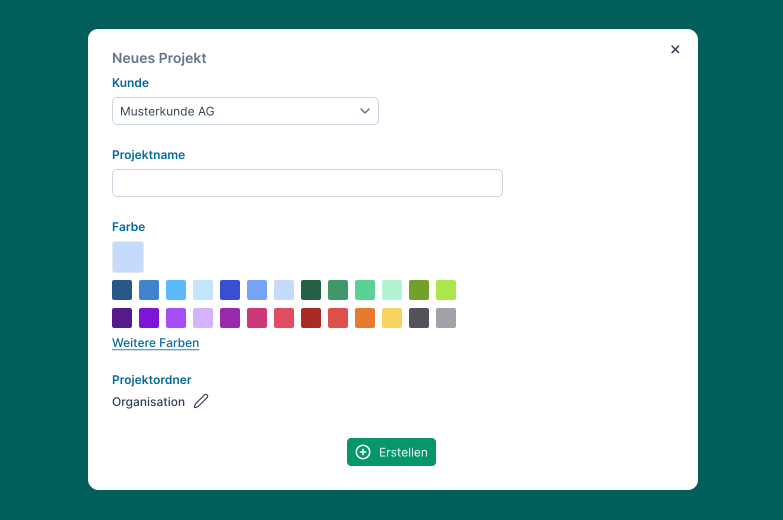
If there are already projects, you can click on the three dots in the project folder or projects within the table.
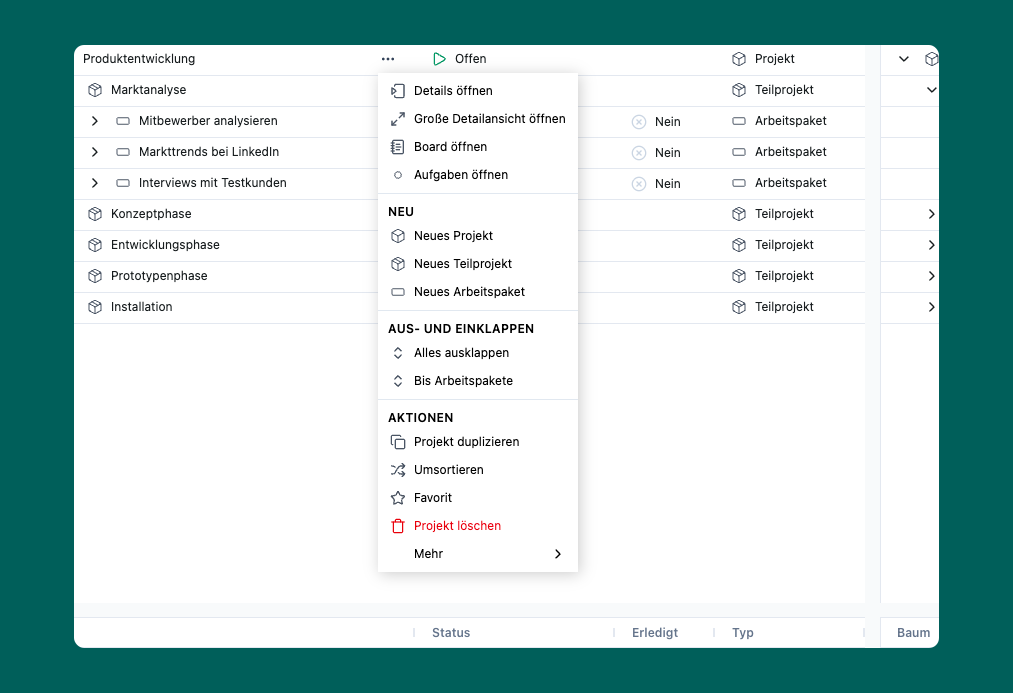
Create subprojects and work packages
The next step is to divide the newly created project into subprojects and work packages.
Use subprojects to define the project phases, for example, “concept phase” or “development phase.” Subprojects help to manage the project more effectively, especially in the case of long-running or complex projects.
Smaller projects are divided directly into work packages. These represent the actual work to be done by the team members. Work packages can be created within projects or subprojects and assigned to team members. They should not be too large or too small. If they are smaller than a day, the administrative effort can become too great. On the other hand, if they last 30 days, it is difficult to keep track of them and reliably determine their degree of completion. There is no general rule; more precise values are industry- and project-specific.
The different project views
In Octaved Flow, you can view your projects in different views, depending on how you prefer to work.
- Project planning: Projects are displayed in a Gantt chart to provide a clearer view of multiple projects and their dependencies.
- Table: An Excel-style display of your entire project portfolio, which is particularly well suited for working with filters and searching for specific qualities.
- Tiles: For a visual view of work packages in tile form.
- Kanban: The large detail view gives you an overview of a project's subprojects and work packages, taking priorities and status into account.
Tips for successful project creation
- Use the existing filters and columns to customize your view of the projects.
- Keep important documents and updates on the board for each project so that all team members have easy access to them.
- Assign labels to set clear priorities that are visible to everyone.