I've been invited to Octaved Flow? What now?
I have received an invitation to Octaved Flow. What is the best way to learn about the software?
Accept the invitation
Click on the invitation link in your email. Set a password for your account.
If you did not receive an invitation link, check your spam folder or ask the person who invited you to send it again.
Get to know Octaved Flow
After signing up, you can explore your new workspace.
Explore the most important menu items to get started with Octaved Flow.
-
My Workspace is your own area. Here you can see the work packages that have already been assigned to you.
-
In Project Planning, you can plan projects and work packages as Gantt charts. Work packages can be moved using drag & drop, and due dates are displayed visually.
-
Team Planning is another term for resource planning. Here you can see what team members are doing in which time period and how much time they have for it.
-
In the Table, you can view all projects in detail and search their data using various filters.
Your first steps in Octaved Flow
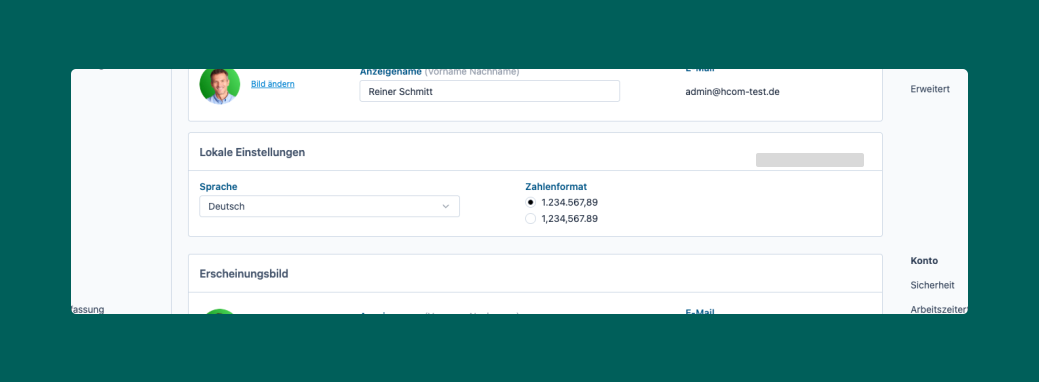
- Customize your personal settings, add or change your display name, and add a profile picture to your account. Here you can also change the language of Octaved Flow and customize the display options. You can also enable two-factor authentication and change your password here.
-
Familiarize yourself with the projects that have already been created and their structures.
-
Check My Tasks in your workspace to see if you have already been assigned work packages.
Get started with the projects
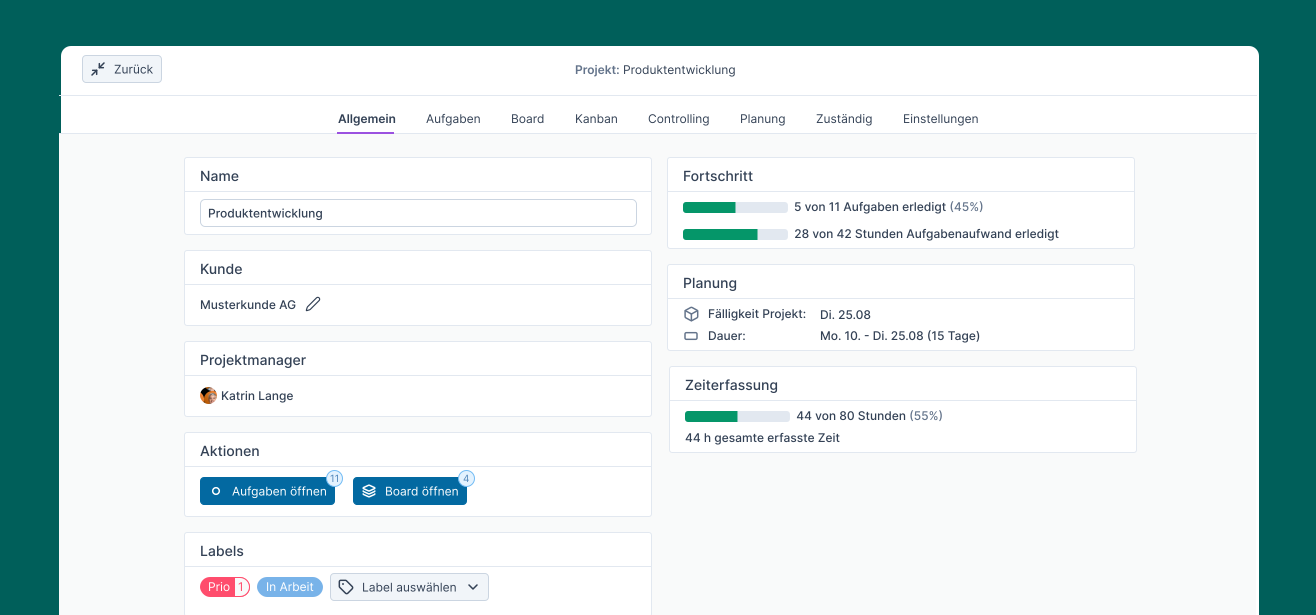
Open project details
Get all the important information that has already been recorded in a project.
Initial division of work packages
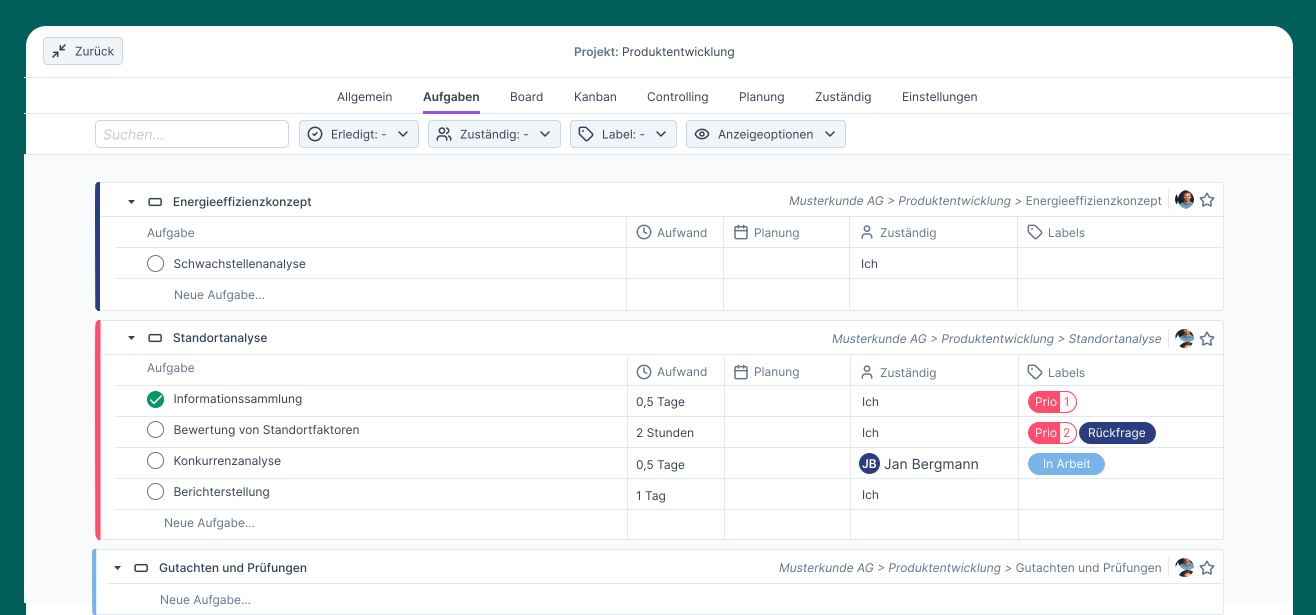
Once work packages have been assigned to you, you can divide them into smaller tasks and plan them yourself. The main purpose of the tasks is to give those responsible the opportunity to divide the work package into smaller steps themselves.
Tasks should not be assigned and allocated by project managers. They should mainly be handled at the work package level.
Tip: The effort required for tasks cannot exceed the total effort for the work package.
Using the board
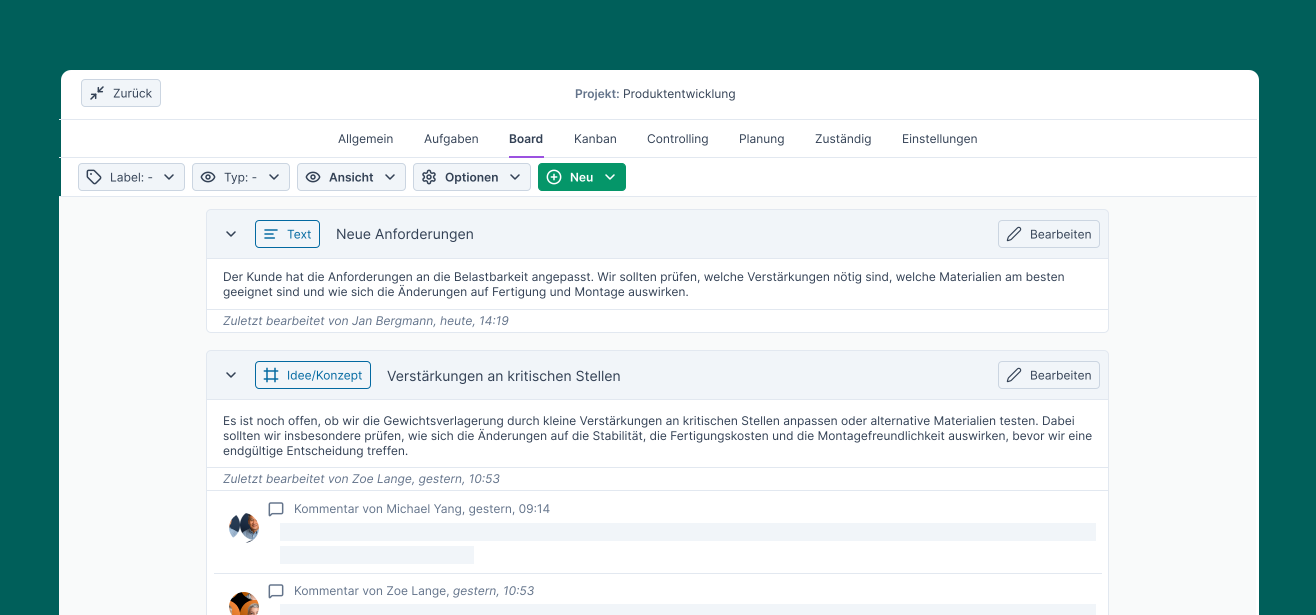
All information and documents relevant to the project can be recorded on the board. Team members can view them, leave comments, and ask questions.
This prevents important communication from taking place across many different channels and saves time that would otherwise be spent searching for information.
Understanding permissions
Project managers can restrict access to areas of Octaved Flow as needed. You can specify exactly who can access which projects and work packages, as well as their information.
So if you don't have access to something, it's because of your permissions. If you believe you should have access, contact the person who invited you to Octaved Flow or the administrator.