Planning simulation
Using the planning simulation in Octaved Flow, you can respond flexibly to changes and run through various scenarios without altering the official project plan.
Using the planning simulation in Octaved Flow, you can respond flexibly to changes and run through various scenarios without altering the official project plan.
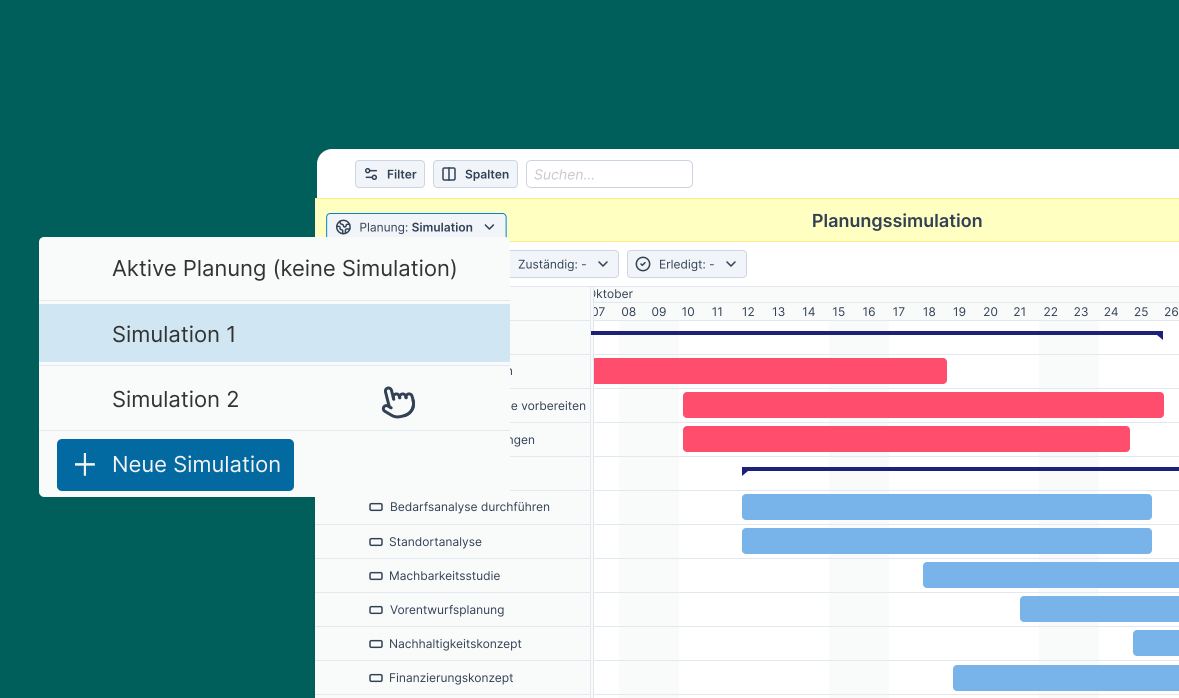
Optimize Project Plans
The planning simulation serves as a protected testing environment where you can test and optimize your ideas for project and resource planning before making them visible to others.
You are now in your personal test environment. Changes you make here are visible only to you and do not affect the official plan. Other team members will not be notified of changes either.
In the planning simulation, all the project and resource planning features you’re familiar with—such as filters and options—are available to you.
Easily compare project plans
If you’re not satisfied with the plan or want to prepare for different scenarios, you can create multiple simulations simultaneously. By comparing the different plans, you can find the optimal solution.

Turn a planning simulation into the official project plan
Once you are satisfied with your simulation, you can use Apply Simulation to make it the official project plan.
The plan is automatically updated, and all relevant parties are notified of the changes. This ensures that your team is always working with the latest and best planning data, while you retain full control over the entire process.
