Baseline comparisons
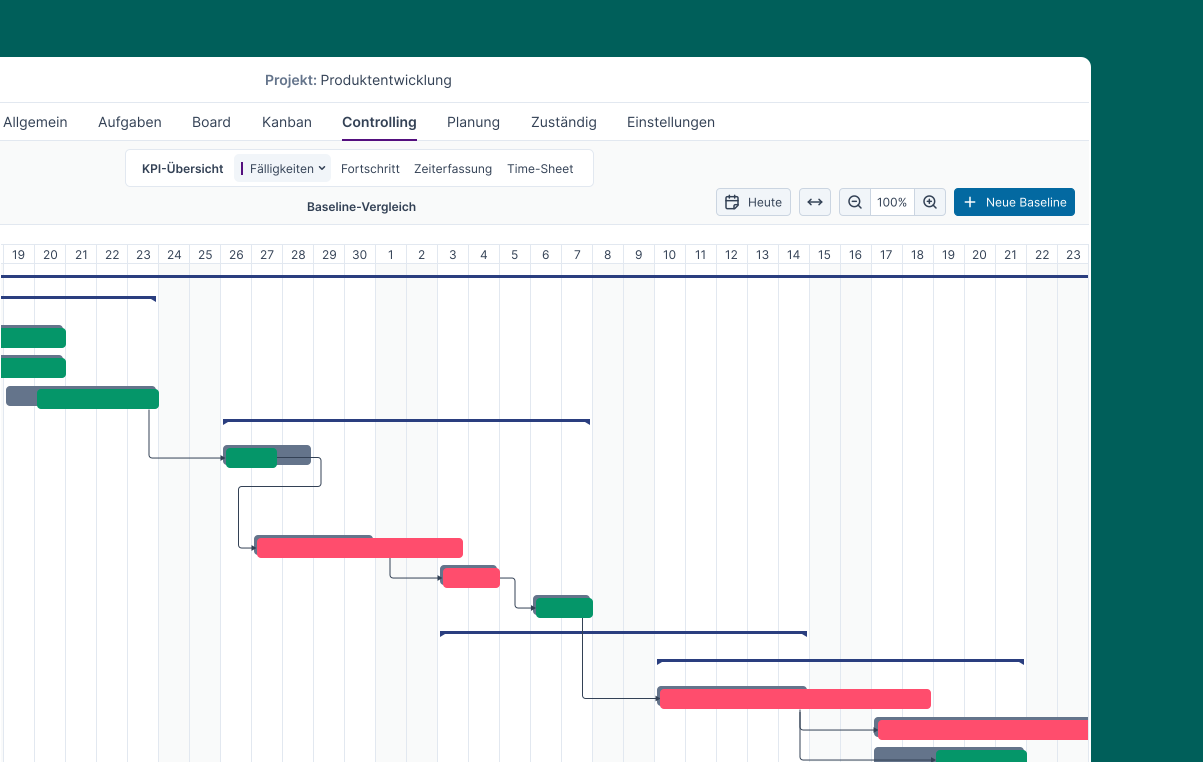
By comparing the project against its baseline, you can identify work packages that have been rescheduled and pushed back by looking for a red marker.
Using a baseline comparison, you can identify work packages that have been rescheduled and pushed back in the project timeline by a red marker. This allows you to draw better conclusions if rescheduling has been necessary too often. As a result, you can plan more realistically in the future.
Enabling Baseline Comparisons
To track the progress of planning, baseline comparisons can be enabled for projects and subprojects.
Identifying Plan Changes
Once baseline comparisons are active, the system automatically highlights all changes made in the baseline comparison within the project plan using color. The comparison with the existing plan is displayed in the background. Work packages that have been pushed back in the schedule appear in red. This allows you to immediately see where delays have occurred.
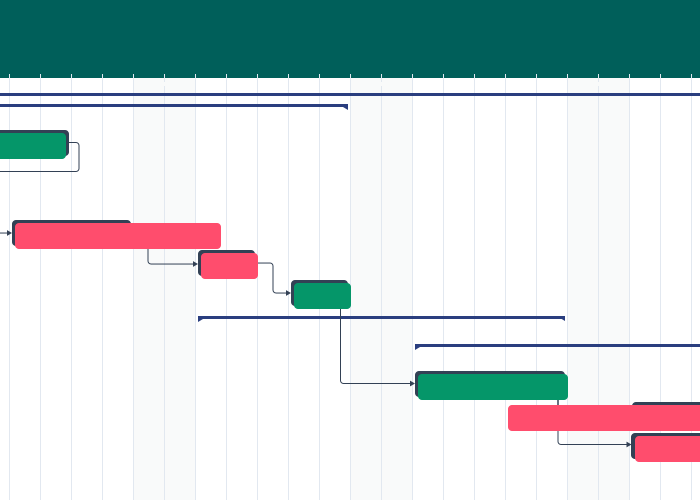
Work packages that follow the same schedule as the current plan are displayed in green. Octaved Flow also takes dependencies between work packages into account: If a task is rescheduled, all indirectly affected tasks are automatically highlighted in color. This gives you a complete picture of all the implications of a schedule change.
Leverage Past Experience
Baseline comparisons help you continuously improve your future planning. If it becomes apparent that certain tasks regularly take longer than planned, you can incorporate these insights directly into your templates. Replace overly optimistic estimates in your templates with more realistic plans to reduce the effort required for future rescheduling and make the project’s progress more stable.
Create baseline points
With baseline comparisons, you can create as many baseline points as you like. Each baseline point saves the status of your project at a specific point in time. This allows you to track how your project plan has changed over time at any moment.
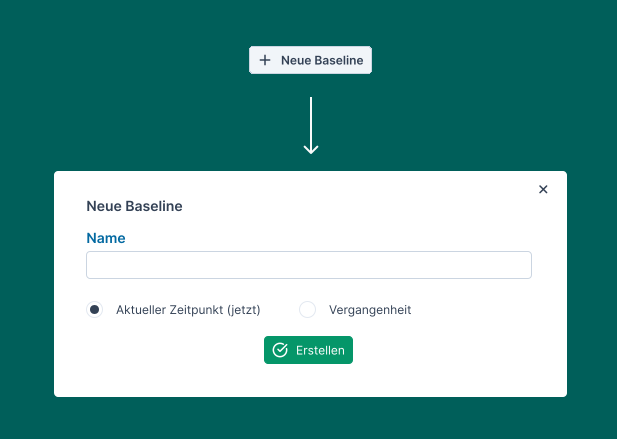
Use these baselines to directly compare different planning stages and clearly illustrate the progress of your project.
If you wish to document a specific point in time retroactively, baseline points can also be set retroactively. This allows you to reconstruct past planning statuses, even if you had not yet created a baseline at that time. When creating a new baseline, select Past to maintain complete transparency regarding the project’s progress even after the fact.