Field Technician Planning
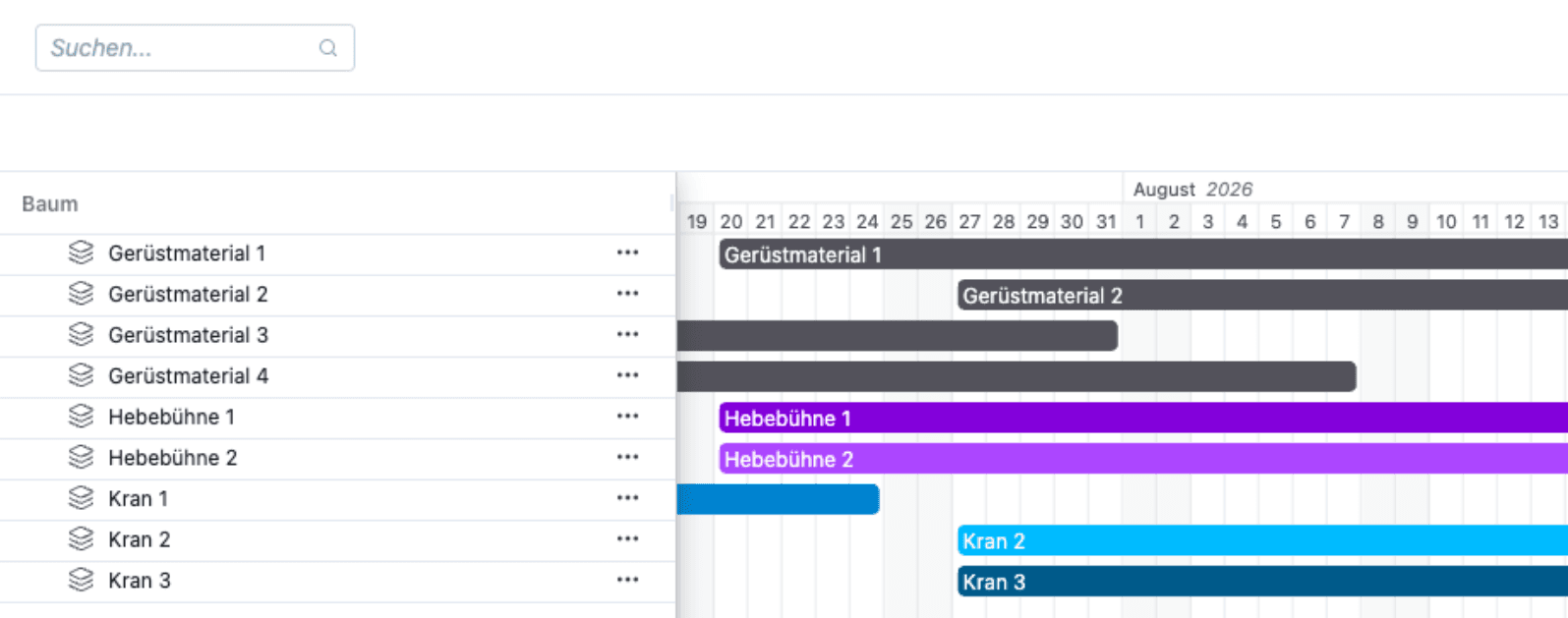
Field Technician Planning is a special mode for scheduling field technicians on construction sites.
Since technicians can only work at one job site per day, scheduling is done on a daily basis rather than by the hour. Availability is displayed immediately, allowing conflicts to be identified early on. Additionally, technicians can be easily assigned using drag-and-drop.
Planning by the Day Instead of by the Hour
Unlike office staff, who can work on multiple projects per day, field technicians work at only one job site per day. Therefore, scheduling is done in full days rather than hours. This results in a practical overview that reflects the actual workflow on job sites.
Cross-Project Planning
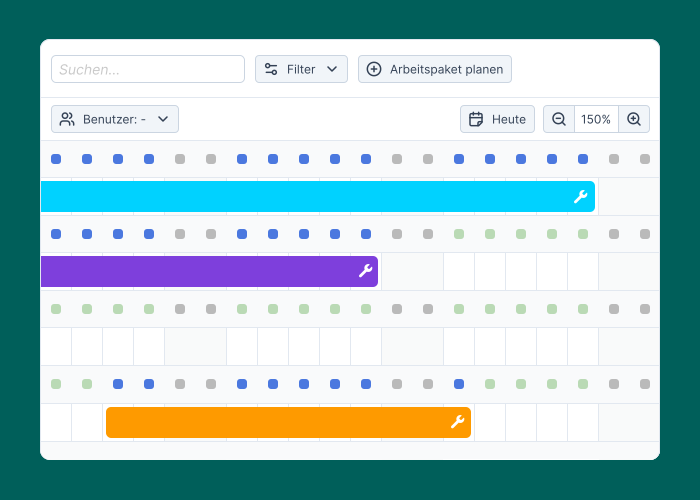
All projects and job sites are clearly summarized in the technician planner module, eliminating the need to manually compile data from separate Excel spreadsheets.
From Resource Planning to Technician Planning
Technician planning is activated directly within resource planning.
Activation per Work Package
Technician planning is activated on a per-work-package basis: Work Package Details > Settings > Field technician planner, and set the toggle to Field technician planner active. A new menu item, Field technician planner, will then appear in the work package.
Once Field technician planner is activated for a work package, you can verify whether enough technicians are scheduled for the construction site at any given time.
Special Settings for Field Technician Work Packages
Additional settings are available for work packages with installer scheduling enabled.
Understanding the Workload Indicator
Instead of workload bars, the technician scheduling display shows a colored dot (quadrant) for each day. This dot represents the technician’s status for that day.
Identifying Conflicts Early
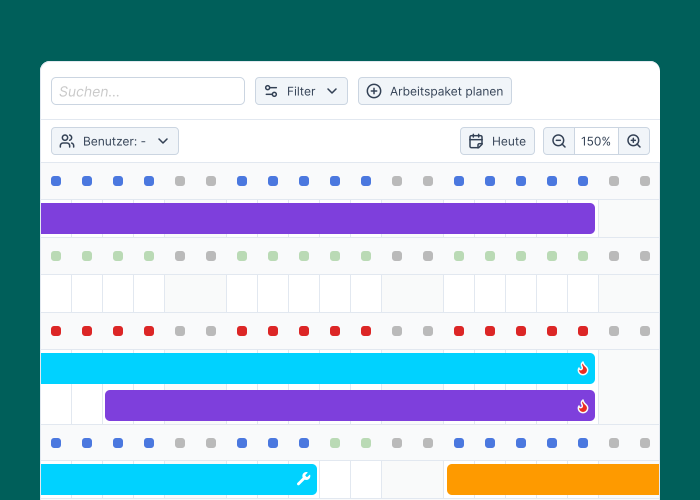
Conflicts are highlighted in red and marked with a flame icon. They can arise, for example, due to project delays or vacation time. When you expand the view for the affected technician, the cause of the conflict is displayed, allowing you to find a solution more quickly.
Reconcile Target Number of Field Technicians
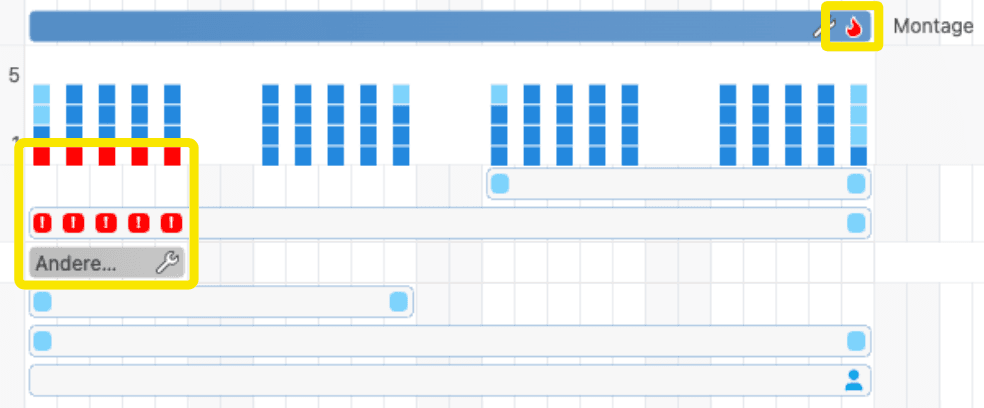
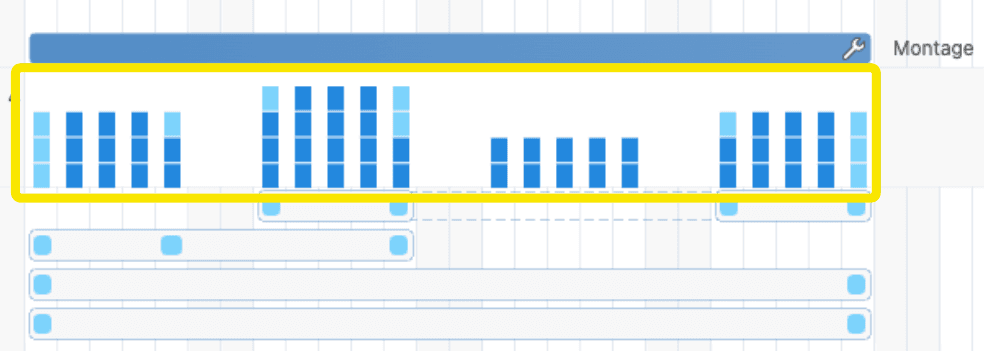
The bars show how many field technicians are scheduled to be on the job site on a given day. Travel days are shown in light blue, while field technicians actually working on site are shown in dark blue.
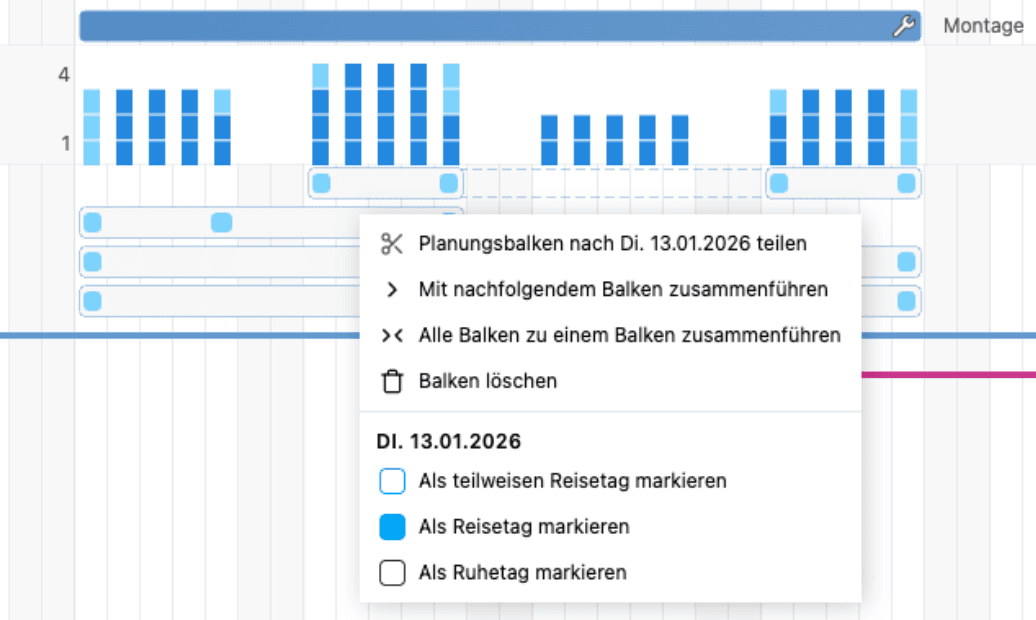
Scheduling Travel Days and Rest Days
By right-clicking on the relevant day, you can mark it as a travel day or a rest, for example, after a long-haul flight. This reduces the number of net workdays accordingly, and it’s clear at a glance where the technician is currently located and what’s happening on the construction site.
Local holidays are automatically taken into account, as described above.
Split Screen for Project Planning
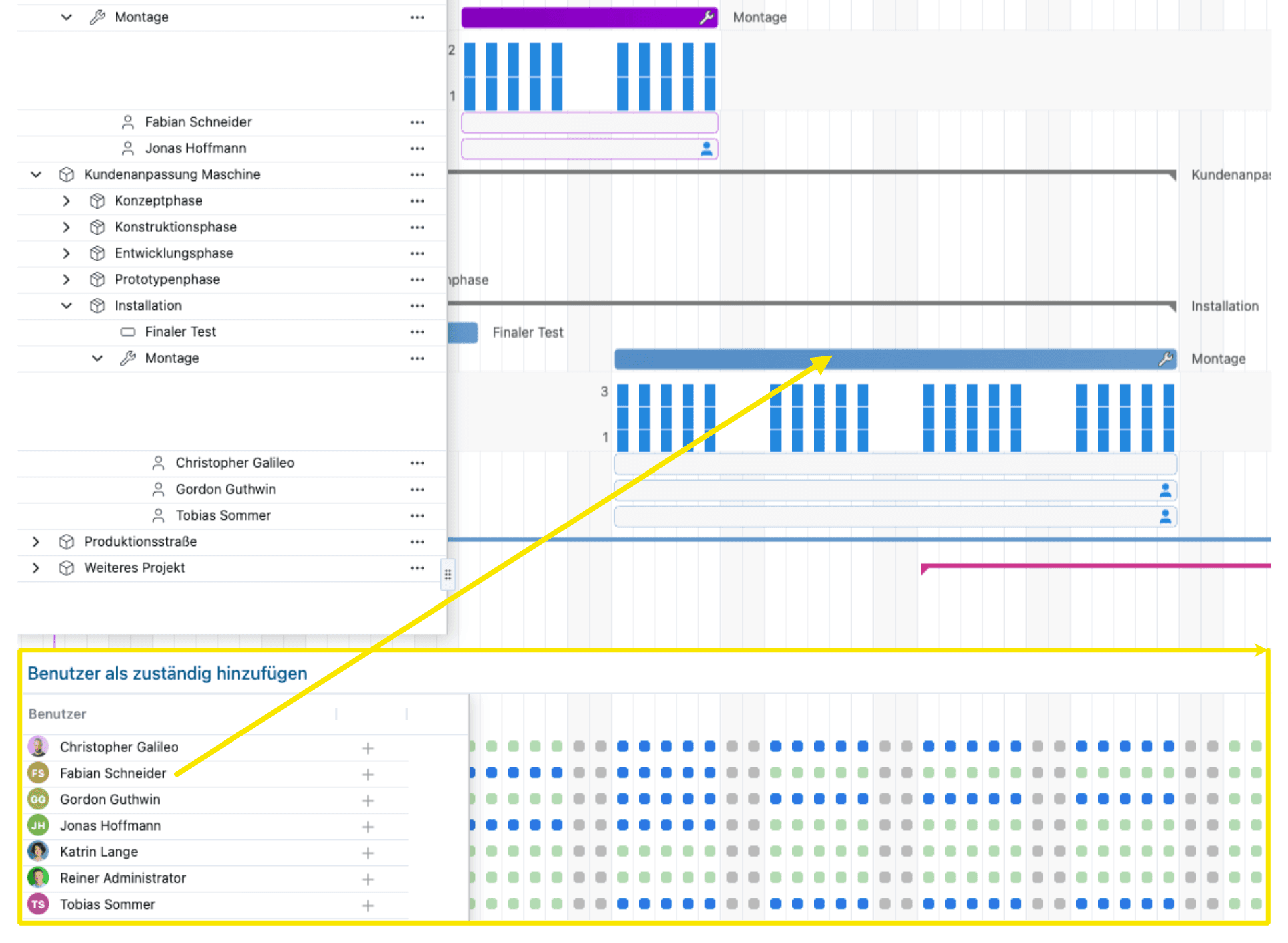
Project planning can be divided into two sections: The familiar project plan is displayed at the top, and available technicians are shown at the bottom. Available technicians are marked with a green dot, while those already scheduled are marked with a blue dot. A technician is assigned to the desired work package by dragging and dropping them from the bottom onto it. Clicking the Add Responsible Person button in the upper center opens the split screen.
This versatile feature is also useful for users who do not schedule technicians.
Split Screen for Team Planning
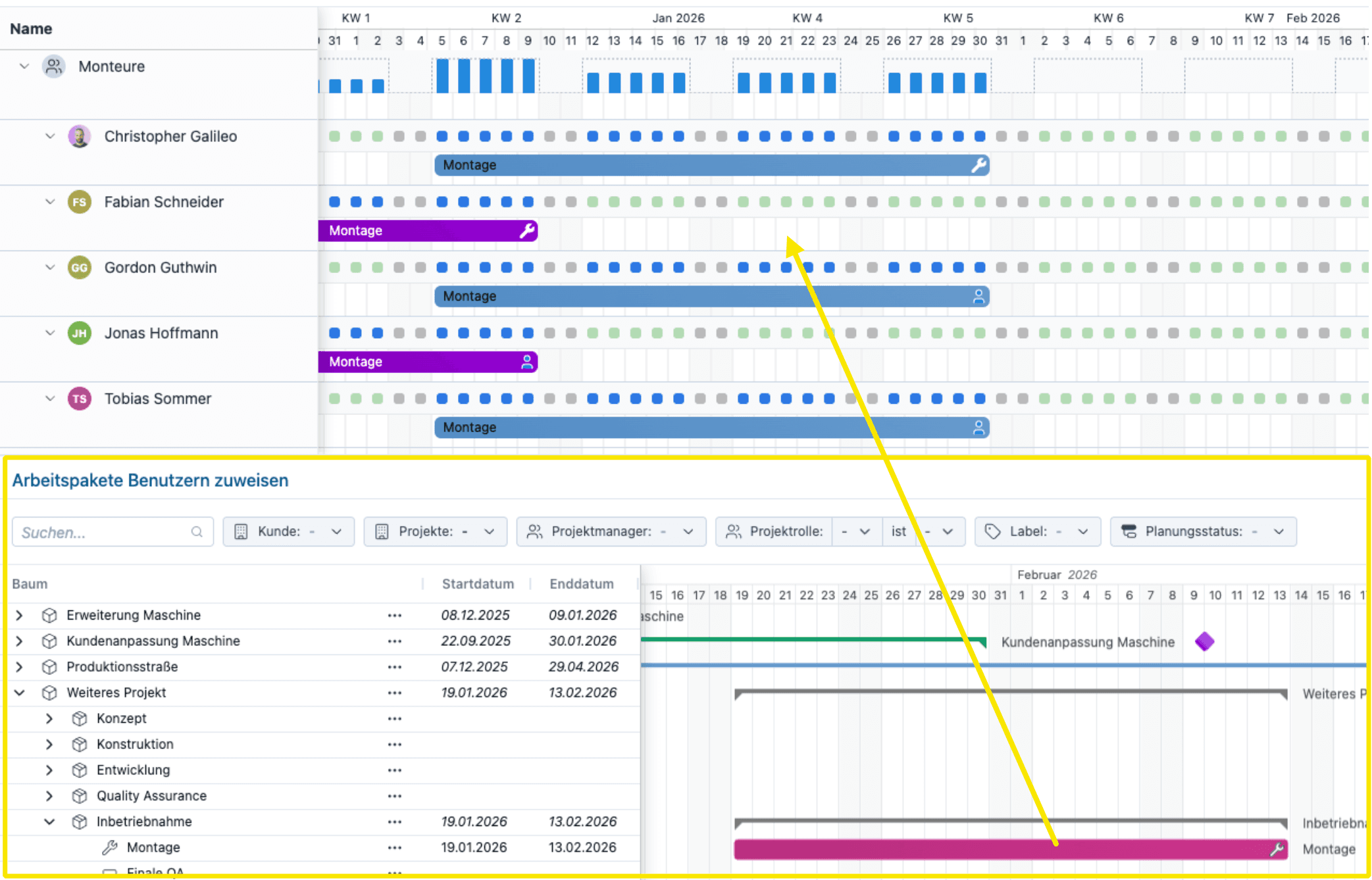
While the project planning split screen assigns technicians to work packages, the team planning split screen works the other way around: Here, work packages are assigned to technicians. Depending on the work process or methodology, there is an additional option (details to be clarified). You can open this split screen using the Assign button at the top center.
This feature is universally applicable, including for heads of specialized departments who wish to assign personnel to their work packages.
Individual Scheduling per Field Technician
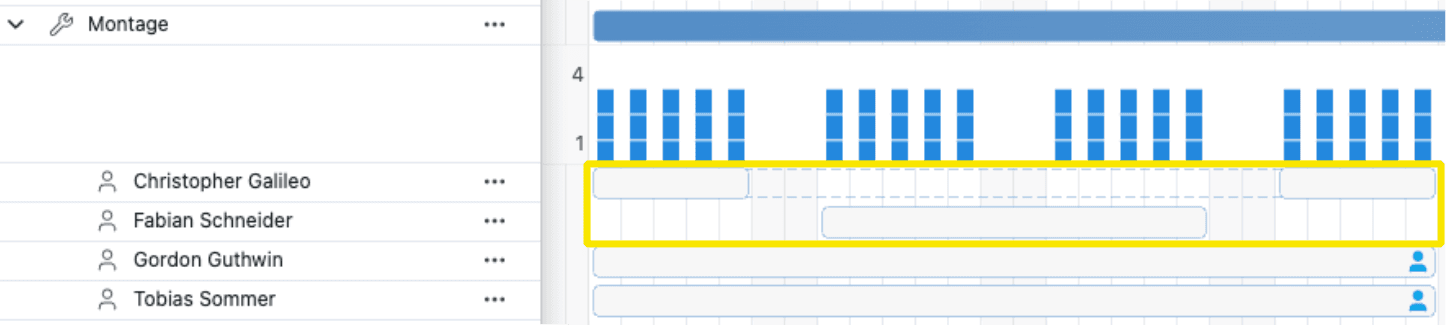
Technicians can leave early and be replaced by others, for example, if a technician responsible for a task does not join the project until the second half of a work package. To do this, the planning bar for the responsible technician is drawn or adjusted just like any other planning bar.
Material Resources
Material resources, such as tools or vehicles, must first be created in the settings. Afterward, the new menu item Material Resources will be available in the planning section, allowing you to schedule these resources in a Gantt chart. A resource that has already been scheduled cannot be scheduled again during that time period, which prevents duplicate bookings.